
The WooCommerce REST API simplifies managing your online store by connecting it with external tools and automating tasks like inventory sync, order updates, and more. This guide covers how to set up API keys, access key endpoints, and securely integrate your store with other systems.
Key Takeaways:
- What it is: A tool to access WooCommerce data (e.g., products, orders) using HTTP methods like GET, POST, PUT, and DELETE in JSON format.
- Why use it: Automates workflows, reduces manual errors, and allows integration with CRMs, mobile apps, and analytics platforms.
- Setup requirements: WordPress 4.4+, WooCommerce 3.5+, HTTPS, and API keys.
- Common endpoints:
/products,/orders,/customers, and/couponsfor managing store data. - Security tips: Use HTTPS, store keys securely, limit permissions, and monitor API activity.
This API enables seamless integration with platforms like Salesforce, HubSpot, or custom apps, saving time and improving efficiency. Below, you’ll find details on generating keys, retrieving data, and troubleshooting common issues.
Generating and Configuring WooCommerce API Keys
Accessing the WooCommerce API Settings
To get started, head over to WooCommerce > Settings > Advanced in your WordPress dashboard. From there, click on the REST API tab and select "Add Key" to create a new API key. You’ll need to provide a short description (like "Mobile App Integration" or "Inventory Sync"), choose a WordPress user to link the key to, and set the desired permission level.
Once you complete these steps, WooCommerce will generate two credentials: a Consumer Key (your public identifier) and a Consumer Secret (the private key used to authenticate requests). Be sure to copy the Consumer Secret right away – it will only appear once. If you lose it, you’ll need to create a new key. Afterward, set permissions carefully to ensure the key has just the right level of access.
Setting Permissions for API Keys
WooCommerce offers three levels of permissions for API keys:
- Read: Grants access to view data only.
- Write: Allows creating or updating records.
- Read/Write: Provides full access to view, create, modify, and delete data.
The permissions of an API key are also influenced by the capabilities of the linked WordPress user.
"Always grant the minimum level of access necessary for the application or user. For example, if an application only needs to read data, assign the Read permission rather than Read/Write." – Abe Selig, eCommerce Specialist, WP Engine
For example, if you’re setting up an analytics dashboard, Read access is sufficient. If you’re uploading inventory updates, choose Write. For more comprehensive integrations – like ERP systems or mobile management tools – Read/Write may be appropriate. Keep in mind that deleting the associated WordPress user will automatically invalidate the API keys tied to that account. Once permissions are set, the next critical step is to secure the keys properly.
Storing and Securing API Keys
Protecting your API credentials is essential for maintaining secure integrations. Avoid hard-coding your Consumer Key and Secret into your application or exposing them in public repositories. Instead, store them securely in server-side environment variables or use a dedicated secret management tool.
For added security, consider restricting API access to specific, trusted server IP addresses. This way, even if your keys are compromised, unauthorized systems won’t be able to use them.
Make it a habit to regularly regenerate and revoke unused keys. Additionally, keep an eye on API logs for any suspicious activity that might indicate misuse.
sbb-itb-77ae9a4
Core Endpoints and Data Retrieval Methods
Key WooCommerce REST API Endpoints
The WooCommerce REST API organizes store data into specific endpoints, each tailored to manage different aspects of your store. For instance:
- The
/productsendpoint handles inventory details, including product variations, attributes, categories, and tags. - The
/ordersendpoint tracks customer purchases, order notes, and refunds. - The
/customersendpoint provides access to user profiles, shipping and billing information, and customer downloads. - The
/couponsendpoint enables you to create and manage discount codes programmatically [3].
Each endpoint follows a consistent URI format: wp-json/wc/v3/<endpoint>.
Retrieving Data Using GET Requests
GET requests are used to fetch data from your WooCommerce store without making any changes. For example, to retrieve a specific product, you’d use GET /products/42. To fetch a list of items, you’d call the base endpoint (e.g., GET /orders), which returns an array of objects [3].
By default, GET requests return 10 items per page. You can adjust this with the per_page parameter (up to a maximum of 100 items) and navigate pages using the page parameter [4]. The response headers X-WP-Total, X-WP-TotalPages, and Link provide the total item count and pagination details [5].
To refine your results, use filtering options. For instance:
- Use the
searchparameter to find items matching a keyword. - Apply
afterandbeforeto filter by ISO8601 date ranges (formatted asYYYY-MM-DDTHH:MM:SS). - Use
statusto filter orders by their current state (e.g., ‘completed’ or ‘processing’). - For products, you can filter by
categoryID,sku, or useincludeandexcludeto target or omit specific resource IDs [3].
Here’s a quick reference for key parameters:
| Parameter | Description | Example |
|---|---|---|
search |
Filters results by a specific keyword | ?search=hoodie |
after / before |
Filters by creation date using ISO8601 format | ?after=2024-01-01T00:00:00 |
status |
Filters resources by status | ?status=completed |
per_page |
Sets the number of items per request (default is 10) | ?per_page=50 |
page |
Specifies the page of results to retrieve | ?page=2 |
Up next: how to use POST and PUT requests to add or modify store data.
Creating and Updating Data with POST and PUT Requests
To add new resources, use a POST request. For example, sending a JSON body with product details to POST /wp-json/wc/v3/products creates a new product. To update existing resources, use PUT requests, specifying the resource ID (e.g., PUT /wp-json/wc/v3/customers/15) and including the updated data in JSON format [3].
The DELETE method removes resources entirely, requiring the resource ID in the request. All three methods – POST, PUT, and DELETE – need API keys with "Write" or "Read/Write" permissions [2]. Successful requests generally return a 200 OK HTTP status, while errors like 400 (Bad Request), 401 (Unauthorized), 404 (Not Found), or 500 (Internal Server Error) indicate issues [3].
The WooCommerce REST API v3 also supports batch operations, making it possible to create or update multiple resources (like products, orders, or customers) in a single request. This reduces the number of API calls needed for bulk updates [5]. If your server blocks POST, PUT, or DELETE requests due to restrictions like ModSecurity rules, you can bypass this by using the _method property in your request to override the HTTP verb.
Integrating WooCommerce Data with External Applications
Using API Libraries for Integration
WooCommerce offers official libraries that simplify authentication and request formatting, making CRUD operations much easier to handle. For different programming environments, here’s how you can get started:
- Node.js: Install the package with
npm install --save @woocommerce/woocommerce-rest-api. - PHP: Use Composer to add the "automattic/woocommerce" package.
- Python: Run
pip install woocommerce. - Ruby: Install the
woocommerce_apigem.
These libraries handle the heavy lifting for you, such as managing HTTP requests, headers, authentication, and error handling. To use them, initialize the library with your store URL, Consumer Key, and Consumer Secret. Then, call methods like get(), post(), put(), or delete() with the appropriate endpoint and data. This abstraction saves you from manually formatting requests.
For secure connections, always use HTTPS, which allows Basic Authentication (your Consumer Key acts as the username and the Consumer Secret as the password). If HTTPS isn’t available, opt for OAuth 1.0a "one-legged" authentication to safeguard your credentials. Also, ensure that WordPress "Pretty Permalinks" are enabled, as the API won’t work with the default "Plain" permalink setting.
Before diving into production, test your API connection using a tool like cURL to confirm everything is set up correctly.
Testing API Integration with cURL
Once your API library is configured, it’s a good idea to test the connection using cURL commands. For example:
- Retrieve orders:
curl https://example.com/wp-json/wc/v3/orders -u consumer_key:consumer_secret - Update a product:
curl -X PUT https://example.com/wp-json/wc/v3/products/<id> -u consumer_key:consumer_secret -d '{"name":"New Name"}' -H "Content-Type: application/json"
If your server doesn’t handle Authorization headers correctly in certain FastCGI setups, you can pass credentials as query string parameters:
https://example.com/wp-json/wc/v3/orders?consumer_key=XXXX&consumer_secret=XXXX For a more user-friendly approach, tools like Postman or Insomnia make it easy to test API calls. These graphical interfaces let you manage headers, payloads, and environment variables. If you’re testing on localhost with a self-signed certificate, remember to disable SSL verification in your tool’s settings.
Practical Use Cases for External Integration
The WooCommerce REST API opens the door to a variety of external integrations. Here are some practical examples:
"Integrating your WooCommerce store into your CRM of choice using REST API ensures that whenever a customer is added, it’s instantly reflected on your CRM dashboard as a lead." – Jeremy Holcombe, Senior Editor, Kinsta [6]
CRM systems like Salesforce or HubSpot can sync customer profiles, billing addresses, and purchase histories, enabling more targeted marketing efforts. Inventory management tools can link your store with external warehouses, keeping stock levels updated in real time and ensuring accurate product availability. Additionally, data analytics platforms can pull order and product data to create custom reports, offering insights into sales trends, customer behavior, and top-performing products.
The REST API is tailored for back-office tasks that require full access to sensitive store data and CRUD operations. This makes it distinct from the WooCommerce Store API, which focuses on customer-facing features like cart and checkout functionality.
WooCommerce REST API Integration
To master the underlying technology, explore these WordPress REST API developer resources.
Troubleshooting and Best Practices
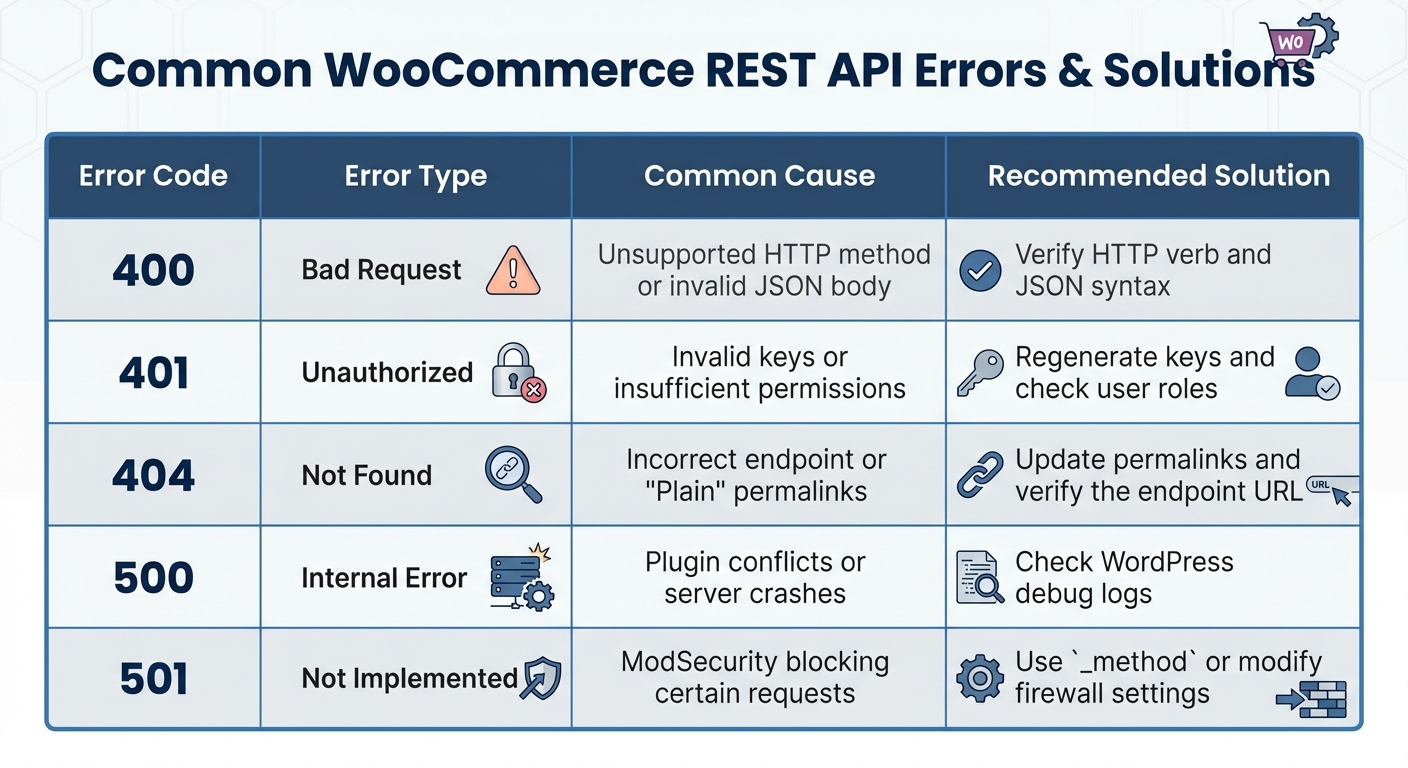
WooCommerce REST API Common Errors and Solutions Guide
For a smooth WooCommerce API integration, it’s important to address common errors, secure your setup, and optimize performance. Here’s a guide to help you manage these aspects effectively.
Handling Common Errors
Authentication issues are among the most frequent problems. A 401 Unauthorized error usually indicates incorrect credentials or insufficient permissions for the WordPress user linked to the API keys. Double-check that you’re using the correct consumer key as the username and the consumer secret as the password. If the issue persists, regenerate the API keys and ensure the user has "Read/Write" access.
Another common issue arises with servers using FastCGI or specific Nginx configurations, which may misinterpret the Authorization header. This can result in a "Consumer key is missing" error. In such cases, use query string parameters like ?consumer_key=123&consumer_secret=abc to pass credentials securely over HTTPS.
A 404 Not Found error often means the WordPress permalinks are set to "Plain." Switch to "Post name", "Day and name", or another non-default option to resolve this. Meanwhile, a 501 Method Not Implemented error could indicate that ModSecurity is blocking certain request types like POST, PUT, or DELETE. If adjusting the firewall isn’t an option, use the _method property to override the request type.
Here’s a quick reference for common errors and their solutions:
| Error Code | Error Type | Common Cause | Recommended Solution |
|---|---|---|---|
| 400 Bad Request | Invalid Request | Unsupported HTTP method or invalid JSON body | Verify HTTP verb and JSON syntax |
| 401 Unauthorized | Authentication Error | Invalid keys or insufficient permissions | Regenerate keys and check user roles |
| 404 Not Found | Resource Missing | Incorrect endpoint or "Plain" permalinks | Update permalinks and verify the endpoint URL |
| 500 Internal Error | Server Error | Plugin conflicts or server crashes | Check WordPress debug logs |
| 501 Not Implemented | Method Blocked | ModSecurity blocking certain requests | Use _method or modify firewall settings |
After resolving errors, focus on securing your API integration to further safeguard your setup.
Security During Integration
Always use HTTPS for API requests. If HTTPS isn’t an option, implement OAuth 1.0a for added protection. The WooCommerce REST API rejects any OAuth request with a timestamp outside a 15-minute window to prevent replay attacks.
Store API keys securely in environment variables rather than hardcoding them into your application. Assign the lowest level of access necessary – for example, use "Read" permissions if the app only needs to view data. Keep in mind that API keys are tied to specific WordPress users, so deleting a user will deactivate their associated keys. Regularly rotate keys and revoke unused ones to maintain security. Additionally, monitor WooCommerce logs to track API activity and detect any unusual behavior.
Optimizing API Performance
Efficiency is key when working with the WooCommerce API. Here are some tips to ensure smooth and fast data exchange:
- Batch Requests: Use batch endpoints to handle multiple operations (e.g., creating, updating, or deleting resources) in a single HTTP call. This reduces the overhead of processing individual requests. For example, developer Misha Rudrastyh improved the "Simple Inventory Sync" plugin by consolidating 20 separate API calls into one batch request, avoiding execution time errors on high-traffic sites.
- Pagination: Retrieve large datasets in smaller chunks using the
per_pageandpageparameters. This prevents overwhelming the server and ensures manageable data handling. - Filtering and Caching: Narrow down results with parameters like
after,before, orstatusto reduce unnecessary data retrieval. Cache frequently accessed static data, such as product IDs, using WordPress transients to minimize redundant API calls. - Background Processing: For large-scale tasks like syncing data, offload API requests to background processes using WP-Cron. This prevents performance issues or timeouts that could affect users.
- Efficient Deletion: When removing many products, use the
?force=trueparameter to bypass the Trash and speed up database operations.
Conclusion
Connecting WooCommerce data with the REST API simplifies store management by automating workflows and integrating with tools like CRMs, ERPs, and inventory management platforms. This approach not only saves time and resources but also helps your e-commerce business scale more effectively.
Features like batch processing, detailed data retrieval, and real-time stock updates open the door to tailored marketing strategies and advanced analytics. Automating tasks like order processing, status updates, and refunds allows you to shift your focus toward growing your business instead of managing repetitive tasks.
"The REST API is a powerful part of WooCommerce which lets you read and write various parts of WooCommerce data such as orders, products, coupons, customers, and shipping zones." – WooCommerce Developer Documentation [1]
This highlights the importance of following best practices for API integration. Ensure security by using HTTPS, safely storing API keys, limiting permissions, setting non-default permalinks, and thoroughly testing your setup with tools like Postman or Insomnia before going live.
When paired with proper authentication, error handling, and performance tuning, debugging common errors, the WooCommerce REST API becomes an essential tool for building a more effective and responsive e-commerce platform. From syncing data with a mobile app to developing custom reporting features, the API gives you the flexibility and control to expand your store’s functionality.
For in-depth tutorials and expert tips on WooCommerce integrations, check out WP Winners (https://wpwinners.com).
FAQs
What’s the best way to securely store and manage WooCommerce API keys?
To keep your WooCommerce API keys safe and well-managed, generate them directly in the WordPress admin area by navigating to WooCommerce > Settings > Advanced > REST API. Once created, make sure the Consumer Key and Consumer Secret are kept private and never included in any client-side code.
For better security, rely on a server-side setup to handle API requests. Storing the keys securely on the server ensures they aren’t exposed in front-end scripts. Always use HTTPS to encrypt all communications, protecting sensitive information while transmitting API keys.
Additionally, assign appropriate permissions to the keys and avoid saving them in publicly accessible locations. These precautions will help shield your WooCommerce store from unauthorized access and potential security threats.
How can I troubleshoot common errors when using the WooCommerce REST API?
To address common WooCommerce REST API errors, start by checking your WordPress permalinks. The API won’t work properly if permalinks are set to "Plain." Make sure they’re configured to any other structure.
If you’re facing authentication issues, verify that you’re using the correct API keys and secrets. Also, ensure your connection is secure by using HTTPS. Tools like Postman or Insomnia are excellent for testing requests – they can help pinpoint problems with formatting, headers, or authentication.
Still having trouble? Try enabling WordPress debugging mode or examine your server logs to dig deeper into potential issues. Lastly, keeping WooCommerce and its plugins up to date can help avoid errors caused by version mismatches. These steps can simplify troubleshooting and save time.
How can I improve the performance of the WooCommerce API when working with large datasets?
To boost the WooCommerce API’s performance when working with large datasets, start by leveraging batch requests. This method lets you handle multiple records in a single call, cutting down on the number of API requests and easing the load on your server. The result? Faster response times and better efficiency.
Another key strategy is implementing caching. By storing frequently accessed data, you can minimize repetitive database queries, which helps speed up API interactions. Pair this with ensuring your server is optimized – allocate enough resources and fine-tune your database queries to improve processing power.
These adjustments can make a noticeable difference when managing large-scale e-commerce data.