
Your WordPress database is the backbone of your site, storing everything from posts and pages to user data and settings. A properly configured database ensures faster load times, better security, and smoother site performance. Here’s what you need to know:
- What it does: Stores all critical site data like posts, users, and configurations.
- Key components: Tables like
wp_posts(content),wp_users(user info), andwp_options(settings). - Why it matters: Improves speed (up to 30% with optimization), enhances security (protects sensitive data), and reduces downtime.
- Setup essentials: Create a database, assign a user with permissions, and connect via
wp-config.php. - Tools: Use phpMyAdmin for visual management, WP-CLI for command-line tasks, and plugins like WP-Optimize for cleanup and backups.
How to Create and Link a Database in WordPress | Step-by-Step Guide
Creating and Connecting Your WordPress Database
This section walks you through the process of securely creating and connecting your WordPress database. The setup involves three key steps: creating the database and user account, configuring the connection file, and setting appropriate permissions. Most hosting providers in the U.S. offer tools to simplify this process, ranging from automated installers to manual configuration through control panels.
Creating a Database and User
The easiest way to create a WordPress database is through cPanel, a common feature offered by many shared hosting providers in the U.S. Once logged into your hosting control panel, head to the "MySQL Databases" section. Here, you’ll need to create a new database with a specific name, like wp_mystore2025 or wp_blogsite123. Avoid generic names for better security.
After naming your database, click "Create Database." Next, move to the "Add New User" section to create a database user. Use a descriptive username like wpuser_mystore and set a strong password that includes upper and lowercase letters, numbers, and special characters.
Alternatively, you can use phpMyAdmin to create the database and user. Navigate to the "Databases" tab and follow similar steps.
Once both the database and user are created, you’ll need to assign the user to the database. In cPanel, this is done in the "Add User to Database" section. Select your newly created database and user, then click "Add." Without this step, WordPress won’t be able to access the database.
Setting Up wp-config.php
The wp-config.php file is the critical link between WordPress and your database. It contains the credentials WordPress needs to connect to your database. You’ll need to update four key constants in this file with the details from your database setup.
To get started, open the wp-config.php file using your hosting provider’s file manager or an FTP client. Locate the database configuration section and update these lines:
define('DB_NAME', 'your_database_name'); define('DB_USER', 'your_database_user'); define('DB_PASSWORD', 'your_database_password'); define('DB_HOST', 'localhost'); Replace the placeholders with your actual database details. For instance:
define('DB_NAME', 'wp_mystore2025'); define('DB_USER', 'wpuser_mystore'); define('DB_PASSWORD', 'your_strong_password_here'); define('DB_HOST', 'localhost'); The DB_HOST value is generally "localhost" for most shared hosting providers in the U.S., but some hosts may use a different value. If you’re unsure, check your hosting provider’s documentation.
Ensure everything matches exactly to avoid connection errors. After saving your changes, test the connection by visiting your WordPress site. This step is essential for ensuring your site runs smoothly and securely.
Setting User Permissions
Database user permissions determine what WordPress can do with the database. Grant only the permissions WordPress needs to function, as excessive permissions can lead to security risks.
WordPress requires specific privileges, including SELECT, INSERT, UPDATE, DELETE, CREATE, DROP, INDEX, ALTER, and LOCK TABLES. These permissions allow WordPress to manage content, handle new posts, update data, and perform maintenance tasks. Avoid granting high-risk privileges like FILE, PROCESS, or SUPER.
In cPanel, after adding the user to the database, you can typically select "All Privileges" for most WordPress installations. For business websites or more secure setups, consider granting only the necessary permissions.
If you’re using phpMyAdmin, go to the "User accounts" section, select the WordPress user, and click "Edit privileges" to assign permissions.
To ensure everything is working, test common WordPress tasks like publishing a post or updating a plugin. If something doesn’t work, you may need to adjust permissions. For added security, use separate database users for different WordPress sites to minimize risks. Permissions can always be modified later through your hosting control panel or phpMyAdmin.
With your database securely created, configured, and connected, you’re now ready to focus on managing and optimizing its performance in the next steps.
Database Management Tools and Methods
Managing your WordPress database efficiently requires the right set of tools. Once your database is connected and properly configured, you’ll find a variety of options to handle maintenance and optimization tasks. Whether you’re a beginner who prefers visual interfaces or an advanced user comfortable with command-line tools, there’s something for everyone.
Managing Databases with phpMyAdmin
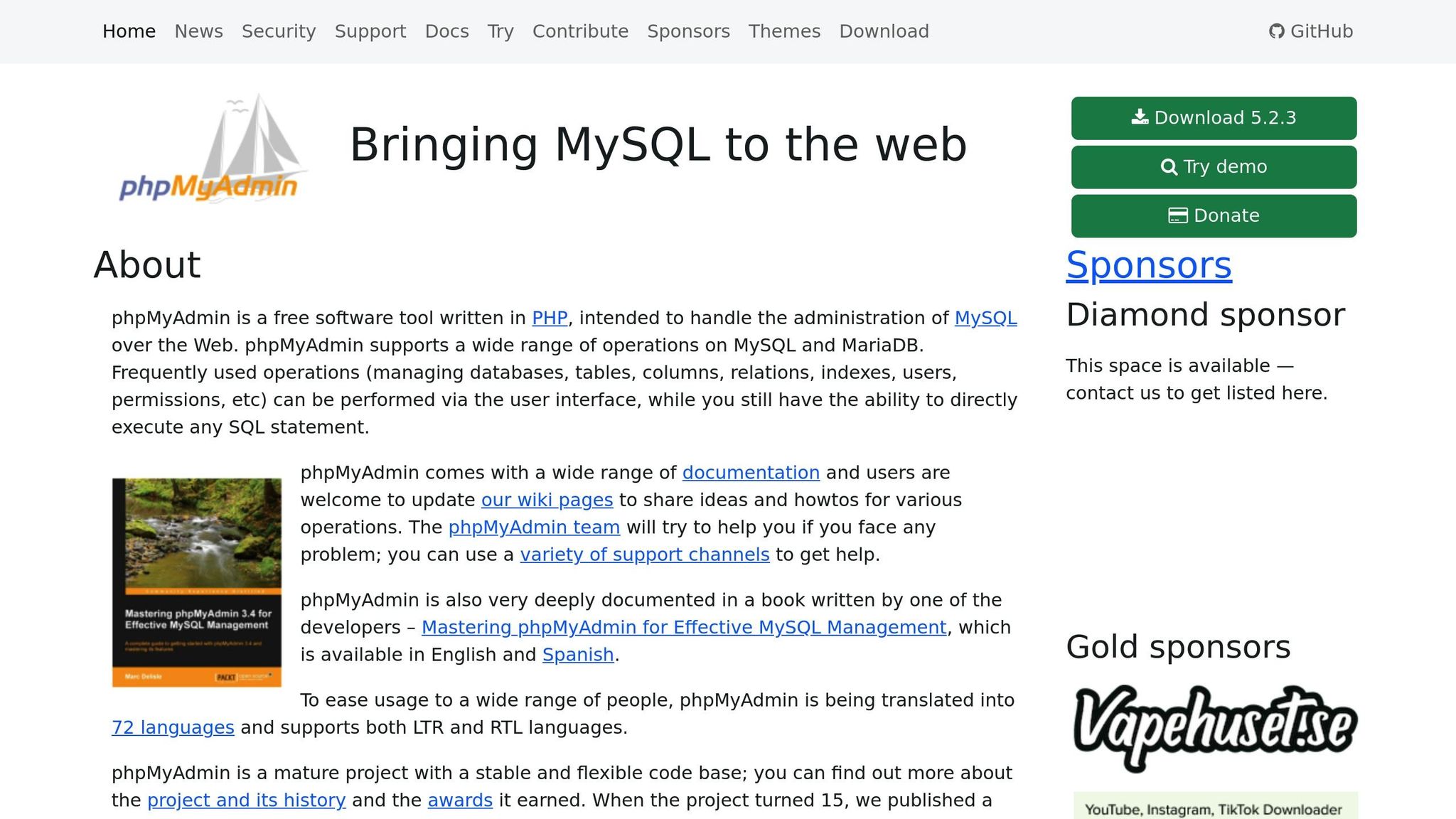
phpMyAdmin is one of the most popular graphical tools for managing WordPress databases. Its user-friendly web interface is often included by default with most hosting providers, making it an accessible choice for many users. It allows you to perform essential database tasks without needing to write complex SQL commands.
For example, creating database backups in phpMyAdmin is simple. Select your database, click "Export", and choose either "Quick" for a standard backup or "Custom" for more control over what gets exported. The result is a downloadable SQL file you can save locally or in cloud storage.
phpMyAdmin also makes running SQL queries straightforward. Using the SQL tab, you can execute commands to search for specific content, update URLs after a site migration, or modify user roles. For instance, if you’re moving from a staging environment to a live site, you can update all URLs in the database with a single query.
Another handy feature is table optimization, which can improve your site’s performance. Simply go to the "Structure" tab, select the tables you want to optimize, and choose "Optimize table" from the dropdown menu. This reduces memory overhead and speeds up MySQL queries, directly impacting your site’s loading speed. In addition, phpMyAdmin provides tools for managing user permissions, viewing table structures, and troubleshooting database issues – all through an intuitive visual interface.
For those comfortable with command-line tools, WP-CLI offers a more advanced alternative.
Using WP-CLI for Database Tasks
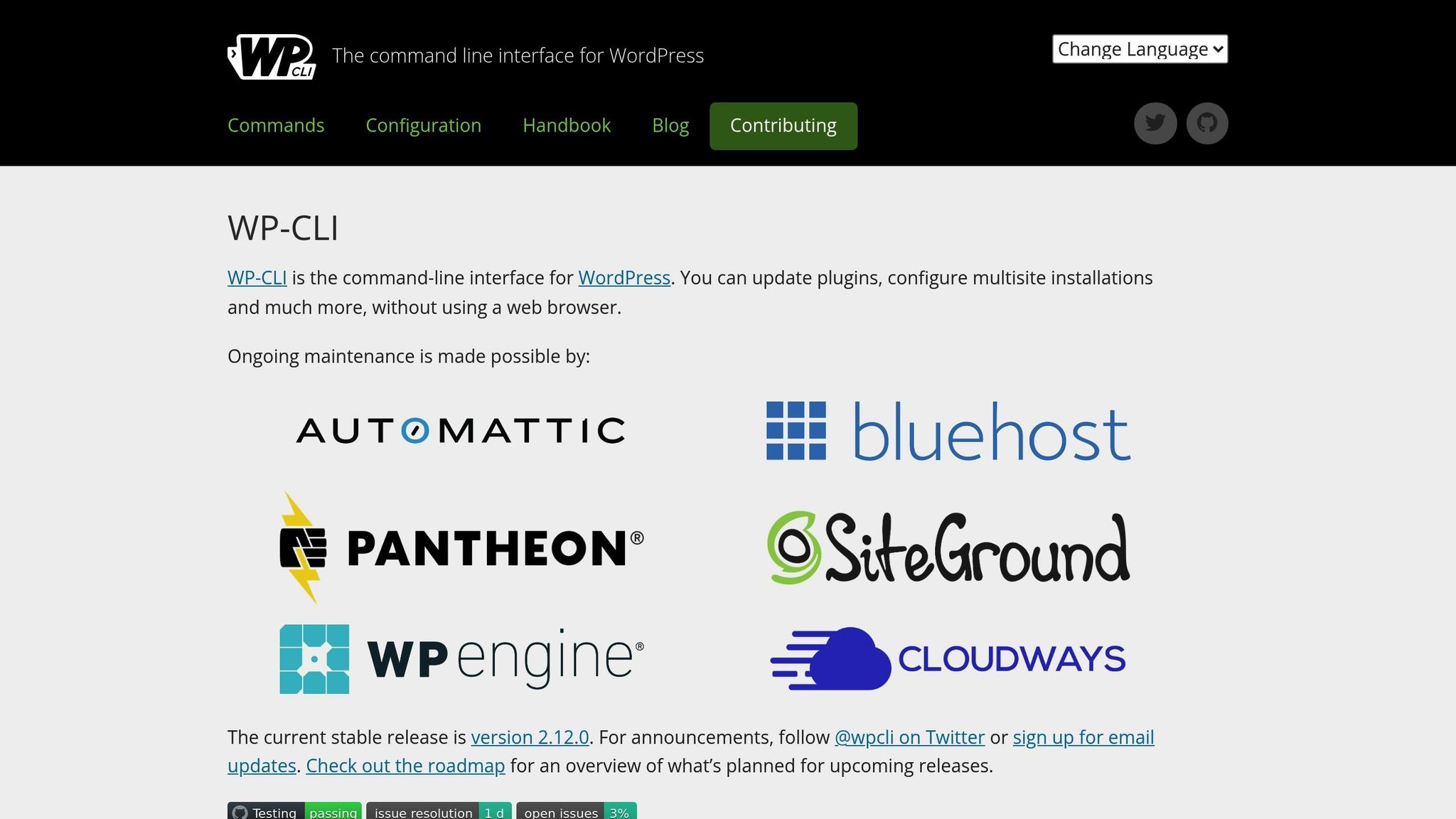
WP-CLI is a powerful command-line tool that’s perfect for automating repetitive tasks and handling bulk operations quickly. It’s especially useful for developers managing multiple WordPress sites or handling complex migrations.
With WP-CLI, tasks like exporting and importing databases become significantly faster. You can script database operations, making it an invaluable tool for automating backups, running search-and-replace commands across entire databases, and executing complex queries directly from the terminal.
For instance, when updating URLs during a site migration, WP-CLI can process thousands of entries in seconds. It also provides better error handling and logging, which can make troubleshooting easier.
The real strength of WP-CLI lies in its ability to automate. You can create scripts for regular database maintenance, schedule automated backups, and seamlessly integrate these tasks into your development workflow. However, WP-CLI does require SSH access and some familiarity with command-line interfaces, which might make it less appealing to beginners.
Database Plugins for Backup and Cleanup
WordPress plugins offer an easy-to-use dashboard for database management, making them a great choice for users who prefer a more visual approach. Two standout plugins provide comprehensive solutions for database maintenance.
- WP-Optimize: This plugin specializes in database cleanup and optimization. It can automatically remove unnecessary data, such as old post revisions, spam comments, and expired transients, which can accumulate and slow down your site. With scheduled cleanups, your database stays efficient without requiring manual effort.
- UpdraftPlus: Ideal for backups, this plugin automates the process of saving your database to remote storage services like Google Drive, Dropbox, or Amazon S3. If something goes wrong, you can restore your site with a single click.
Both plugins offer free versions with essential features, as well as premium upgrades for more advanced functionality. They simplify database maintenance, reduce the risk of errors, and ensure your site runs smoothly. Whether you’re managing a personal blog or multiple business websites, these tools can make database management significantly easier.
WP Winners provides curated recommendations and tutorials to help you implement these tools effectively, ensuring your database remains in top shape with minimal hassle.
sbb-itb-77ae9a4
Database Performance and Security
Ensuring your WordPress database operates efficiently and stays secure requires more than just proper configuration. By adopting sound performance and security practices, you can maintain a fast and protected site while minimizing vulnerabilities.
Database Cleanup and Speed Improvements
Database bloat is a major factor behind sluggish WordPress sites. Over time, unnecessary data builds up, slowing down queries and increasing storage demands. Common culprits include post revisions, spam or trashed comments, expired transients, and leftover data from unused plugins or themes.
For example, WordPress automatically saves every edit, leading to a bloated wp_posts table filled with post revisions. Similarly, spam comments and expired session data accumulate, creating unnecessary overhead.
Cleaning up your database can have a dramatic impact. WP Rocket estimates that a cleanup can shrink database size by up to 80%, speeding up queries and improving site performance. According to WP Engine, optimizing database tables can enhance Time to First Byte (TTFB) and page load times, which are crucial for SEO and user retention. A 2023 WP-Optimize survey revealed that over 60% of WordPress sites saw major performance boosts after regular database maintenance.
Start by deleting old revisions, spam, and trashed comments from your admin panel or database tools. Remove unused plugins and themes, as these often leave behind orphaned tables and options. Clear out expired transients and session data to reduce clutter.
To optimize database tables, use phpMyAdmin. Navigate to your WordPress database, go to "Structure", select all tables, and choose "Optimize table" from the dropdown menu. This process eliminates overhead and improves query efficiency.
You can also limit future post revisions by adding this line to your wp-config.php file:
define('WP_POST_REVISIONS', 3); This change keeps your database lean moving forward. For instance, an e-commerce site that removed expired transients and old revisions reduced its database size by 30% and significantly improved TTFB.
Once your database is optimized, protecting it with regular backups becomes essential.
Setting Up Regular Backups
After improving database speed, safeguarding your data with reliable backups is non-negotiable. Backups act as a safety net against data loss caused by server failures, hacking, or accidental deletions. The best approach is to automate backups so they occur consistently without relying on manual intervention.
Plugins like UpdraftPlus, BlogVault, and WPvivid offer comprehensive solutions with scheduling features and cloud storage integration. Automated backups are especially important because they reduce the risk of human error and ensure your data is always protected.
Follow these backup best practices:
- Schedule automated backups using plugins or hosting features.
- Store backups in multiple locations, such as cloud services (e.g., Google Drive, Dropbox, Amazon S3) and local storage.
- Test backup restoration regularly to ensure data integrity.
For manual backups, tools like phpMyAdmin or WP-CLI allow you to export your database. However, automated tools are more reliable, especially for busy site owners.
Backup frequency depends on how often your site changes. E-commerce sites or frequently updated blogs should back up daily, while static sites may only need weekly backups. Always back up your database before making major changes, like optimizations or updates.
Some plugins combine database cleanup, optimization, and backup features, streamlining maintenance into one workflow.
Database Security Steps
With a clean and backed-up database, the next priority is security. Protecting your database from unauthorized access and malicious attacks is essential for keeping your site safe.
Start with strong, unique passwords for database users and update them every 3–6 months. If you change a password, update the credentials in your wp-config.php file to maintain the connection.
Limit user permissions to only what’s necessary for regular operations: SELECT, INSERT, UPDATE, and DELETE. Avoid granting permissions like DROP, ALTER, or GRANT unless absolutely required. This principle of least privilege minimizes potential damage if credentials are compromised.
Where possible, restrict database access to trusted IP addresses. Many hosting providers let you configure access controls, blocking unauthorized connection attempts.
Enable SSL/TLS encryption for secure remote connections, which prevents credentials and data from being intercepted during transmission.
Keep your WordPress core, plugins, and themes updated to patch vulnerabilities that attackers could exploit. Remove unused plugins and themes, as these can become security risks over time.
Finally, monitor access logs to detect suspicious activity. Look for unusual connection patterns, failed login attempts, or unexpected queries. Many hosting providers offer monitoring tools, or you can use security plugins for tracking database activity.
| Security Task | Frequency | Method |
|---|---|---|
| Password Update | Every 3–6 months | Hosting panel/phpMyAdmin |
| Permission Review | Quarterly | Hosting panel/phpMyAdmin |
| Access Log Review | Monthly | Hosting dashboard/security plugins |
| Security Updates | As released | WordPress admin/hosting panel |
Platforms like WP Winners provide step-by-step guides, plugin recommendations, and expert advice to help users implement effective database cleanup, backup, and security practices. Whether you’re a beginner or an advanced user, these resources can guide you in maintaining a fast and secure WordPress database.
Advanced Database Setup and Customization
After securing and optimizing your WordPress database, there are advanced techniques that can take your site’s security, performance, and scalability to the next level. These methods are especially useful for high-traffic websites, businesses managing sensitive information, or organizations preparing for growth. By building on basic security and performance measures, these advanced strategies help make your database more resilient and capable of handling complex demands.
Let’s dive into some of these advanced customization methods that prepare your database for heavier workloads and heightened security needs.
Changing Table Prefixes for Security
WordPress databases use a default table prefix (wp_) for all tables, which creates a predictable structure that hackers often exploit. Changing this prefix to something unique can help protect your site from SQL injection attacks that target standard WordPress table names.
For example, bots typically look for tables like wp_posts, wp_users, or wp_options. By renaming these to something less predictable, you make it harder for automated attacks to succeed.
For new WordPress installations, you can set a unique prefix in your wp-config.php file. For instance:
$table_prefix = 'us123_'; If you’re modifying an existing site, you’ll need to back up your database first. Then, update the $table_prefix in wp-config.php and rename each table in your database. For example:
RENAME TABLE wp_posts TO us123_posts; Additionally, update any references in the options and usermeta tables to match the new prefix. While this process requires careful attention to detail, it can effectively block many automated attacks that rely on default table names.
Setting Character Sets and Collations
The character set and collation of your database determine how text data is stored and sorted. Configuring these settings correctly ensures proper handling of special characters, emojis, and US English text.
The recommended character set for WordPress is utf8mb4, which supports the full Unicode standard, including emojis and symbols. Pair this with the collation utf8mb4_unicode_ci, which is optimized for sorting and comparing English text while maintaining compatibility with international characters.
When setting up your database in tools like phpMyAdmin, select utf8mb4 as the character set and utf8mb4_unicode_ci as the collation. Update your wp-config.php file to reflect these settings:
define('DB_CHARSET', 'utf8mb4'); define('DB_COLLATE', ''); Leaving DB_COLLATE empty allows WordPress to use the database’s default collation, which should already be set to utf8mb4_unicode_ci. This ensures compatibility with various character types and prevents issues with special symbols or emojis.
Connecting to Remote Database Servers
For websites with high traffic or businesses requiring better scalability, hosting your database on a separate server can significantly improve performance and reliability. By separating the database from the web server, you distribute the workload and open the door to advanced backup and scaling options.
To set up a remote database connection, first ensure your MySQL server allows external connections from your web server’s IP address. Then, create a database and user account on the remote server with the necessary permissions (e.g., SELECT, INSERT, UPDATE, and DELETE for WordPress). Finally, update your wp-config.php file to point to the remote server:
define('DB_HOST', 'db.example.com'); define('DB_NAME', 'your_database_name'); define('DB_USER', 'your_username'); define('DB_PASSWORD', 'your_password'); Security is critical in remote setups. Use SSL/TLS encryption for database connections, restrict access to specific IP addresses, and monitor logs for unusual activity. Keep in mind that network latency can affect performance, so thorough testing is essential before committing to this setup. By decoupling your database load from the web server, you create a more scalable and reliable infrastructure.
For more detailed guidance, tools, and tips on advanced database configurations, WP Winners offers resources to help both beginners and experienced users tackle these technical setups with confidence.
Conclusion
A well-tuned WordPress database is the backbone of a site that’s fast, secure, and dependable. By following these steps, you can transform a basic setup into a system that’s ready to handle growth and withstand security threats.
Strengthening your database starts with smart security practices. Simple changes like modifying default table prefixes, using strong passwords, and limiting user permissions create multiple layers of defense. Regularly updating passwords and enforcing strict access controls can block unauthorized access and protect against automated attacks targeting default settings.
Performance is another key area where attention pays off. Routine database cleanups can significantly improve your site’s speed and responsiveness. For instance, WP Rocket reports that cleaning and optimizing a WordPress database can shrink its size by up to 80%, which translates to faster load times and a better experience for your visitors [1]. Automated backups add an extra layer of safety, while testing your restoration process ensures you’re ready for emergencies.
As your site grows, advanced configurations help your database keep up. Features like remote database servers and custom character sets prepare your site to handle more traffic and even cater to international audiences, making them invaluable as your hosting needs evolve.
By focusing on regular maintenance and implementing advanced setups, you can avoid small issues escalating into larger problems. These practices keep your site running smoothly and ensure a positive experience for your visitors.
For more tips and resources, check out WP Winners, where beginners and seasoned users alike can find helpful guides to master these essential skills.
FAQs
How can I optimize my WordPress database for better speed and security?
To keep your WordPress database running smoothly and securely, you need to focus on two key areas: performance and protection.
Start by trimming the excess. Remove spam comments, outdated post revisions, and other unnecessary data to shrink your database and speed up load times. You can also use database optimization tools or plugins to fine-tune your tables and ensure everything operates efficiently.
On the security side, make sure you’re using strong, unique passwords for database access. Limit user permissions to prevent unauthorized access, and always keep your WordPress installation and plugins updated. For added peace of mind, set up regular database backups – these can be a lifesaver if something goes wrong.
By prioritizing both optimization and security, you’ll ensure your WordPress site stays fast, reliable, and protected.
What are the advantages of using a remote database server for WordPress, and how can I set it up?
Using a remote database server for your WordPress site can bring a range of advantages, such as better performance, the ability to handle growth more effectively, and stronger security measures. By keeping your database separate from your web server, you can ease the strain on your server, make better use of resources, and protect your data more effectively. This approach is particularly valuable for websites with heavy traffic or businesses that need reliable database management.
To get started with a remote database server, you’ll need access to a server that has database software installed, like MySQL. Then, update your WordPress wp-config.php file with the details of the remote server, including the hostname, database name, username, and password. Make sure the remote server is set up to accept connections from your web server’s IP address, and adjust firewall settings as needed. Before making any big changes, always back up your database to safeguard your data.
How can I maintain and back up my WordPress database to avoid losing important data?
Keeping your WordPress database secure and running smoothly requires regular maintenance and backups. Start by setting up automated backups with trustworthy plugins. These tools often let you save backups to external platforms like cloud storage, adding an extra layer of safety. Just make sure to regularly check that your backups are complete and accessible when needed.
It’s also a good idea to periodically clean up your database. Remove spam comments, outdated revisions, and unused tables to boost performance and minimize the chance of data corruption. On top of that, secure your database by using strong and regularly updated credentials – this includes your username, password, and host information. These steps can go a long way in protecting your WordPress site and keeping it in top shape.