
Managing domain mapping in WordPress Multisite can be tricky, but understanding key issues and their fixes makes it manageable. Here’s what you need to know:
- What is Domain Mapping? It assigns custom domains (e.g.,
yourblog.com) to subsites in a WordPress Multisite network. - Key Requirements: Ensure proper hosting, DNS settings, SSL certificates, and WordPress configuration.
- Common Problems:
- DNS Issues: Incorrect A/CNAME records, propagation delays, or outdated DNS cache.
- SSL Errors: Expired/mismatched certificates or mixed content warnings.
- Redirect Loops: Misconfigured database entries, cookie domain issues, or server conflicts.
Quick Fixes:
- Verify DNS records with tools and clear your DNS cache.
- Use the correct SSL type (Wildcard, Multi-Domain, etc.) and update all HTTP URLs to HTTPS.
- Align WordPress URL settings (
siteurlandhome) and fix.htaccessorwp-config.phpconflicts.
Bottom Line: Proper DNS, SSL, and WordPress setup are essential for smooth domain mapping. Stick with WordPress’s built-in tools for most setups, but test changes in a staging environment before going live.
WordPress Multisite Tutorial – Domain Mapping Plugin – Custom URLs – WordPress Hosting Service
sbb-itb-77ae9a4
Common Domain Mapping Problems and Why They Happen
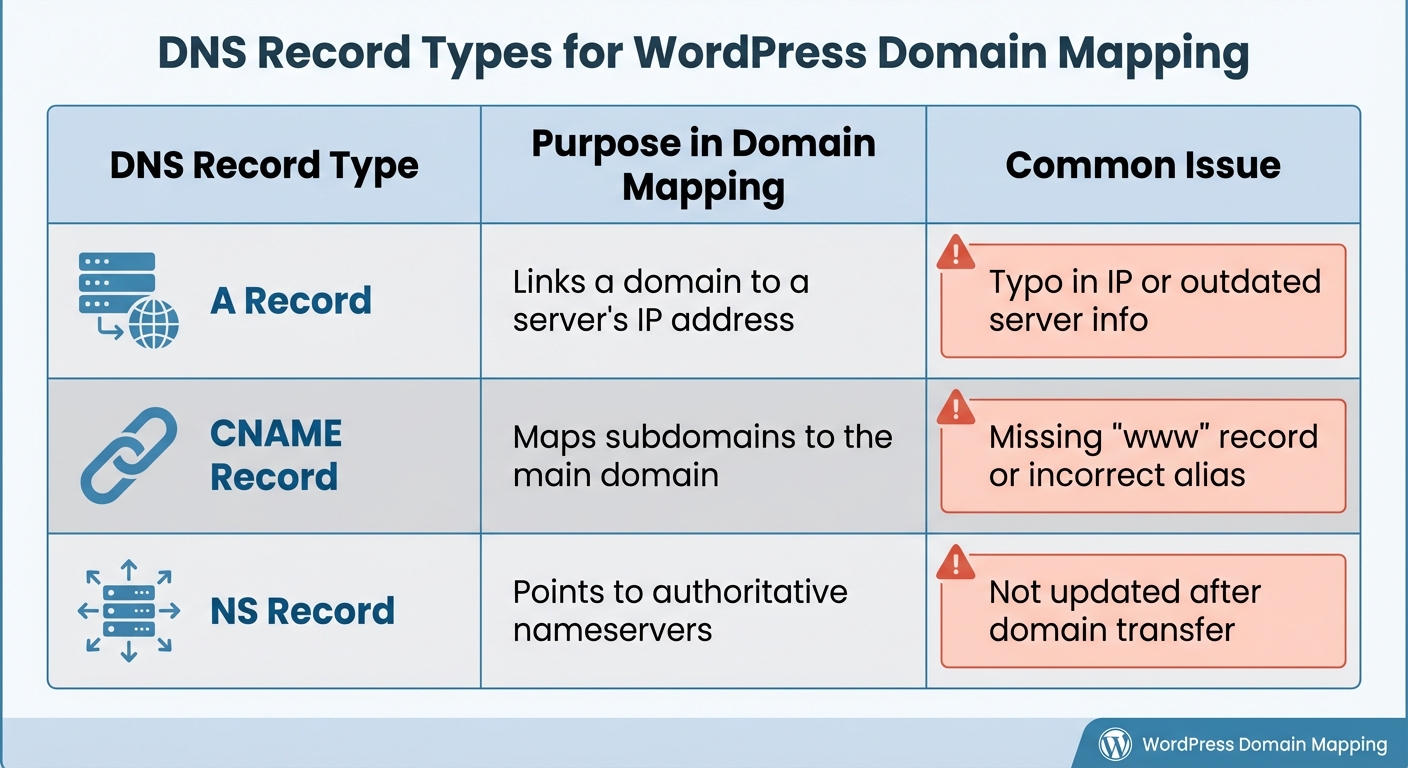
DNS Record Types and Common Issues in WordPress Domain Mapping
Domain mapping can sometimes hit a few bumps, even if your hosting and setup seem perfect. Knowing what usually goes wrong can save you time and help you fix issues faster. The top culprits? DNS misconfigurations, SSL certificate troubles, and unexpected redirects to the main site.
DNS Records Not Working
DNS issues are the most frequent cause of domain mapping headaches. Mistyped IP addresses in A records or missing essential entries – like the "www" CNAME record – can block your domain from resolving properly [5].
Another factor is DNS propagation time. Changes to DNS records can take a few minutes to 48 hours to update globally, especially if the TTL (Time-to-Live) setting is too high (e.g., 24 hours). During this time, DNS resolvers may still serve outdated information [5]. Nameserver mismatches, such as failing to update authoritative nameservers after transferring a domain, can further complicate things [5].
Outdated DNS cache can also cause problems. Even after updates, your browser, ISP, or local DNS resolver might serve old IP addresses. On top of this, even a small typo in a subdomain record – like api.example.com – can break specific functionalities, even if the main domain works fine [6]. Tools like DNS checkers can help pinpoint these issues.
| DNS Record Type | Purpose in Domain Mapping | Common Issue |
|---|---|---|
| A Record | Links a domain to a server’s IP address | Typo in IP or outdated server info [5] |
| CNAME Record | Maps subdomains to the main domain | Missing "www" record or incorrect alias [5] |
| NS Record | Points to authoritative nameservers | Not updated after domain transfer [5] |
Once you’ve ruled out DNS issues, SSL certificate errors are often the next hurdle.
SSL Certificate Errors
Common SSL certificate issues can block secure connections to your domain. Problems like expired certificates, mismatched domain names, or mixed content warnings can all cause trouble. For instance, Let’s Encrypt certificates expire every 90 days and need regular renewal [8]. A mismatch happens when the certificate is issued for example.com but doesn’t cover www.example.com – unless both are included in the Subject Alternative Name (SAN) field [8].
An incomplete certificate chain, often caused by missing intermediate certificates, can lead to trust issues on mobile devices and older browsers [8]. Self-signed certificates or certificates issued by untrusted authorities may also be rejected by browsers [8].
Server misconfigurations can make things worse. Redirect loops, caused by conflicting server rules or plugin settings, can result in "Too Many Redirects" errors [9]. Additionally, mismatched DNS records or incorrect server time settings can cause browsers to flag certificate validity issues [8]. Before issuing a certificate, make sure all domain variations – like www, non-www, and subdomains – are covered in the SAN field [8].
After resolving SSL issues, focus on your WordPress database to prevent unwanted redirects.
Domains Redirecting to Main Site
If your mapped domain keeps redirecting to the primary site, check your WordPress database. Inconsistent entries in the wp_options table (siteurl and home) can cause these redirects. WordPress Multisite depends on accurate data in the wp_options, wp_blogs, and wp_site tables. If these entries don’t match the mapped domain, users might get redirected to the main site or even see a signup page (wp-signup.php) [10][11].
Unrecognized domains can cause similar problems. If WordPress doesn’t recognize a domain as part of the network, it might display a registration prompt (e.g., wp-signup.php?new=domain) [11]. This often happens after migrations when search-and-replace operations fail to update the wp_site and wp_blogs tables, which store domain names without protocols (e.g., example.com instead of https://example.com).
PHP settings can also play a role. If auto_globals_jit is enabled in your php.ini file, the $_SERVER['HTTP_HOST'] variable might not initialize correctly, making WordPress default to the primary network address. Conflicts between www and non-www versions of a domain – like mapping example.com but users accessing www.example.com – can also lead to redirection issues [12]. Additionally, cookie domain misconfigurations in multisite setups, especially with different TLDs, can trigger login loops or redirects if COOKIE_DOMAIN isn’t properly defined in wp-config.php [12]. Finally, pairing Cloudflare’s "Flexible" SSL mode with HTTPS enforcement on your server can create endless redirect loops.
How to Fix Domain Mapping Problems
Now that you know what causes domain mapping issues, let’s dive into how to fix them. These solutions address the three main problem areas: DNS configuration, SSL certificates, and unwanted redirects.
Fixing DNS Configuration
Start by ensuring your DNS records point to the correct server IP address. Use a DNS lookup tool to confirm that your A records match your hosting provider’s IP. For subdomain-based multisite networks, set up a wildcard A record (e.g., *.example.com) that points to your server’s IP. This allows any subsite to resolve automatically [4].
If you’re mapping a completely separate domain, use a CNAME record to direct it to your primary network domain [13]. Also, verify that your domain’s nameservers match those provided by your hosting provider [13]. Keep in mind, DNS updates can take up to 48 hours to propagate globally [13].
If the site still doesn’t load after updating DNS settings, try clearing your local DNS cache. On Windows, open Command Prompt and run ipconfig /flushdns. For Mac, open Terminal and follow the appropriate commands [13]. Once DNS is functioning, update the "Site Address (URL)" in WordPress Network Admin (Sites > Edit) to match your custom domain. Add define( 'COOKIE_DOMAIN', false ); to your wp-config.php file to avoid login issues [2][4].
Once DNS is sorted, move on to fixing SSL certificate problems.
Fixing SSL Certificate Problems
SSL issues often stem from using the wrong certificate type. Here’s what you’ll need:
- For subdomain-based multisite setups (e.g.,
site1.domain.com), get a Wildcard SSL certificate that covers*.your-site.com[14]. - For multiple unique domains (e.g.,
mappeddomain.comandanotherdomain.com), opt for a Multi-Domain (UCC) SSL certificate [14]. - For subdirectory setups (e.g.,
domain.com/site1), a standard SSL certificate will suffice [14].
You can use free SSL certificates from Let’s Encrypt, which support multisite setups [14].
If you’re seeing mixed content warnings, it means secure pages are loading resources over HTTP. Update both "WordPress Address" and "Site Address" in Settings > General to use https://. Then, use essential plugins like Better Search Replace to find and replace all instances of http://yourdomain.com in your database with https://yourdomain.com [9][15]. To pinpoint lingering HTTP resources, use your browser’s "Inspect" tool and manually update them in your theme or plugin files [15].
Encountering a "Too Many Redirects" error after enabling SSL? Add the following to your wp-config.php file before the "Happy blogging" line:
define('FORCE_SSL_ADMIN', true); if (strpos($_SERVER['HTTP_X_FORWARDED_PROTO'], 'https') !== false) $_SERVER['HTTPS']='on'; With SSL issues resolved, you can tackle any lingering redirection problems.
Fixing Redirection Issues
Even after addressing DNS and SSL settings, redirection loops can still occur due to misaligned WordPress URL settings. These loops often happen when your siteurl and home values don’t match or when there’s a conflict with your CDN settings. First, check that the siteurl and home values in your wp_options table (or via Settings > General) are identical and use https:// [16][17]. If you can’t access the dashboard, override these settings by adding the following to your wp-config.php file:
define('WP_HOME', 'https://yourdomain.com'); define('WP_SITEURL', 'https://yourdomain.com'); If you’re using Cloudflare, set the encryption mode to "Full" or "Full (Strict)" to ensure it connects to your server over HTTPS. Avoid "Flexible" mode, which can create redirect loops because Cloudflare connects via HTTP while your server enforces HTTPS [16][17].
Another common fix is replacing your .htaccess file with a fresh copy of WordPress’s default rules to eliminate conflicting manual redirects [16].
Finally, clear your browser cache and cookies, as they may store outdated redirect paths. If the issue persists, clear HSTS settings using your browser tools. For example, in Chrome, go to chrome://net-internals/#hsts [8]. Modern browsers will give up and display an error after about 20 redirects [16].
Plugin-Based vs. Manual Domain Mapping
Once you’ve tackled common domain mapping issues, the next step is deciding on the right method for managing your WordPress Multisite network. You essentially have two main options: leveraging plugins or sticking to WordPress’s built-in tools. Since WordPress 4.5, domain mapping has been integrated as a core feature, eliminating the need for third-party plugins in most cases [20]. This shift has changed how administrators approach domain mapping. Below, we break down the differences between manual setups and plugin-based solutions to help you decide which option suits your needs.
Manual domain mapping involves updating the "Site Address (URL)" field in the Network Admin settings. This method relies entirely on WordPress’s native capabilities [2]. While straightforward, it does require some technical know-how, such as editing files like wp-config.php and configuring DNS records or server settings via FTP or SSH.
Plugin-based mapping, on the other hand, offers a more user-friendly experience. With plugins like Mercator, you can access features like bulk domain management and automatic redirects through a simple dashboard interface [18]. However, as Martin Aranovitch points out, "WordPress 4.5 introduced domain mapping as a native feature. So, you don’t have to use a third-party plugin" [20]. Additionally, many older plugins are now outdated or unsupported, which can lead to security vulnerabilities or compatibility problems [1].
For those comfortable with coding, programmatic mapping is another option. Using PHP hooks like wpmu_create_blog, advanced users can automate domain mapping tasks [18]. While this approach requires development expertise, it can save significant time when managing a large number of sites.
Comparison Table: Domain Mapping Methods
| Factor | Plugin-Based | Manual (Native Core) | Programmatic (Code) |
|---|---|---|---|
| Setup Complexity | Low; managed via dashboard UI [18] | Moderate; requires file editing [2] | High; custom PHP scripts needed [18] |
| Time Investment | Quick for single sites [18] | Moderate; manual entry per domain [18] | High initially; fast for bulk tasks [18] |
| Technical Expertise | Beginner; basic WordPress skills | Intermediate; FTP and PHP editing [2] | Advanced; PHP expertise required [18] |
| Flexibility | Limited to plugin features [18] | High; leverages core functionality [20] | Very high; fully customizable [18] |
| Maintenance Risk | Plugin conflicts and updates [7] | Minimal; built into WordPress core | Risk of code errors if not maintained [18] |
| Best For | Simple networks needing convenience | Most modern multisite setups | Large-scale automated deployments |
Before applying any changes across your network, always test them in a staging environment [7]. No matter which method you choose, you’ll still need to configure DNS records (A or CNAME) and ensure your hosting account supports custom domains, often through settings like "Parked Domains" or "Alias" [2][19].
Conclusion
Setting up domain mapping in WordPress Multisite becomes far simpler when you understand the process. The most common problems – like DNS misconfigurations, SSL issues, and login loops – usually come down to technical errors that can be resolved with the right steps. DNS configuration is key: your A or CNAME records must direct traffic to your multisite server before anything else will function properly [7][4]. Additionally, each mapped domain requires its own SSL certificate to ensure secure connections [7][21].
Since WordPress 4.5 introduced built-in domain mapping, there’s no longer a need for third-party plugins for basic setups [2][20]. This change streamlines the process, though you’ll still need to handle server-level tasks like configuring parked domains and updating your wp-config.php file. For login loop issues, adding define('COOKIE_DOMAIN', false); to your wp-config.php file can help [4].
Always test updates in a staging environment before applying them to your live network [21][4]. Even minor errors in your .htaccess or wp-config.php file can disrupt your entire multisite setup. If domains don’t resolve as expected, clearing your cache often fixes the issue [7].
Key Takeaways
Here’s a quick recap of the essential steps for successful domain mapping: focus on proper DNS configuration, ensure SSL certificates are correctly set up, and pay close attention to WordPress core settings. Mapped domains provide each subsite with its own SEO identity, which is great for branding but requires unique content to avoid search engine penalties [20]. Using wildcard DNS records (e.g., *.example.com) can streamline subdomain creation, saving you from manually adding DNS entries for every new site [4].
Your approach – whether plugin-based, manual, or programmatic – depends on your technical expertise and the size of your network. For most modern setups, the native domain mapping feature introduced in WordPress 4.5 is sufficient, provided your hosting supports custom domains through configurations like "Parked Domains" or "Alias" settings [2][4].
More Resources on WP Winners
For more in-depth guidance, WP Winners offers detailed tutorials on everything from enabling Multisite by modifying wp-config.php and .htaccess files to troubleshooting DNS and SSL certificate issues [2][4][3]. Their resources also explore the SEO impact of different network structures and provide advanced management strategies using WP-CLI for site creation and user management [4].
Whether you’re setting up your first multisite network or managing a large network with dozens of mapped domains, WP Winners delivers practical, research-backed advice without affiliate bias. Visit https://wpwinners.com for guides on server requirements, security tips, and performance optimization tailored specifically for WordPress Multisite setups.
FAQs
How can I tell if my domain mapping issue is related to DNS or WordPress?
If your domain isn’t resolving to the correct server or is showing the wrong IP addresses, it’s probably a DNS issue. Start by checking your DNS records – A, CNAME, or NS – to confirm they’re set up correctly and have fully propagated.
If the DNS settings are fine but your site still isn’t displaying as expected, take a closer look at your WordPress domain mapping settings. Misconfigurations or conflicting plugins could be the culprit.
What SSL certificate do I need for mapped domains in Multisite?
To protect mapped domains in a WordPress Multisite network, you’ll need a wildcard SSL certificate for each subdomain (e.g., *.n1.site.com). This type of certificate secures all subdomains under one certificate, making it easier to manage and ensuring consistent protection across your network.
Why does my mapped domain keep redirecting to the main site?
Your mapped domain might redirect to your main site if there are conflicting URL settings. This often happens when the WordPress Address and Site Address URLs don’t match. Additionally, issues with your server configuration or SSL/HTTPS settings can trigger redirect loops. To fix this, double-check that all URLs are consistent and review your SSL settings for any misconfigurations.
Related Blog Posts
- WordPress Multisite Domain Mapping: Step-by-Step Guide
- Set Up Subdirectories in WordPress Multisite
- Ultimate Guide to Subdirectory SSL in Multisite
- Enable Multisite on Existing WordPress Site
Setting up domain mapping (so the issues don’t happen)
Most domain-mapping problems trace back to one of three things being wrong at setup: the wp-config constants, the network admin entry, or the DNS records. Getting all three right the first time prevents the redirect loops, cookie errors, and “site not found” failures that send people looking for fixes.
The legacy approach: SUNRISE and sunrise.php
Older multisite installs — and any still running the classic WPMU Domain Mapping plugin — rely on a drop-in file. The plugin places sunrise.php in wp-content/sunrise.php, and you activate it by adding this constant to wp-config.php, above /* That's all, stop editing! */:
define( 'SUNRISE', 'on' );WordPress loads sunrise.php very early in the boot process — before the site is fully resolved — which is what lets it match an incoming mapped domain to the right subsite. If you see “the SUNRISE constant is defined but sunrise.php is missing,” the file was never copied into wp-content; if mapping does nothing at all, the constant is usually absent. Place the define line above the multisite block, not below it.
The modern approach: native mapping in WordPress 4.5+
Since WordPress 4.5, domain mapping is built into core and no longer needs SUNRISE or a plugin for the common case. Add the network’s core constants to wp-config.php above /* That's all, stop editing! */:
define( 'DOMAIN_CURRENT_SITE', 'your-main-domain.com' );
define( 'ALLOW_MAPPED_DOMAINS', true );
To force the admin and login areas over HTTPS on mapped domains, add:
define( 'FORCE_SSL_ADMIN', true );
define( 'FORCE_SSL_LOGIN', true );
Set COOKIE_DOMAIN to stop login failures
The classic mapped-domain symptom is being unable to log in to a mapped subsite — either an explicit “cookies are blocked” error, or a login that silently returns you to the form. That happens because WordPress sets the auth cookie against the network’s main domain, not the mapped one. Letting the cookie follow the host being served fixes it:
define( 'COOKIE_DOMAIN', $_SERVER['HTTP_HOST'] );Some setups instead disable the constant entirely with define( 'COOKIE_DOMAIN', false );. Use one or the other, never both, and place it after the multisite definition block in wp-config.php.
Add the domain in the network admin
With the constants in place, attach the domain to the subsite. In modern core, go to Network Admin > Sites > Edit for the target subsite and change the Site Address (URL) field to the full mapped URL, including the protocol, for example https://example.com, then save. Installs running the domain-mapping drop-in instead expose a dedicated Network Admin > Sites > Edit Site > Domains tab: enter the domain there without http:// or www, mark it as Primary, and enable Force HTTPS. Enter the domain in exactly one place — defining it in both the URL field and the Domains tab is a common cause of redirect loops.
Point DNS at the network
The mapped domain must resolve to the same server that runs the network, and it has to be parked on (pointed at) the master domain’s host before WordPress can serve it. Create these records at the mapped domain’s registrar:
- A record — host
@— pointing to your server’s IP address. Suggested TTL 3600 seconds. - CNAME record — host
www— pointing to@(the root domain). Suggested TTL 14400 seconds.
Until these records resolve, the mapped domain returns the host’s default page or a “site not found” error rather than the subsite — so confirm propagation before assuming the mapping itself is broken. Because mapped domains are served over SNI, make sure the certificate covers each mapped domain too.