
Exporting custom tables in WordPress is a must if you’re dealing with plugin data, custom applications, or site migrations. Regular exports help protect your data, ensure smooth transitions, and enable deeper analysis. Unlike WordPress’s built-in XML tool, exporting in formats like SQL or CSV captures all your data. Here’s how you can do it:
Key Steps:
- Identify Custom Tables: Use tools like phpMyAdmin or WP-CLI to locate tables with custom prefixes (e.g.,
wp_pluginname). - Backup Your Database: Always create full backups before exporting. Use tools like phpMyAdmin,
mysqldump, or WP-CLI. - Check Permissions: Ensure you have database access credentials (
DB_USER,DB_PASSWORD) and hosting permissions. - Choose a Method:
- phpMyAdmin: Visual interface, great for smaller exports.
- WP-CLI: Command-line tool for faster, large-scale exports.
- Plugins (e.g., Admin Columns Pro): Ideal for formatted CSV exports.
Export Formats:
- SQL: Best for migrations or complete backups.
- CSV: Perfect for spreadsheets and data analysis.
- XML: Suitable for WordPress-specific content like posts or pages.
By following these steps, you can safely and effectively export your custom WordPress tables for backups, migrations, or analysis.
Preparing for Custom Table Exports
Getting ready to export custom tables? Follow these steps to avoid permission errors, data loss, or confusion about which tables to include.
Finding Custom Tables in Your WordPress Database
Custom tables in your WordPress database often follow a specific naming convention. Start by checking the table prefix in your wp-config.php file ($table_prefix, which defaults to wp_). Tables created by plugins or developers usually stick to this format (e.g., wp_your_custom_table) to remain compatible with WordPress’s $wpdb object [3].
To locate these tables, open phpMyAdmin and select your database. You’ll see a list of all tables, including core and custom ones. Custom tables often include the plugin name, making them easier to identify. If you’re comfortable using WP-CLI, you can quickly list tables by running commands like wp db tables or wp db tables 'wp_pluginname*' [2].
Keep in mind that on managed platforms like WordPress.com, direct database access through phpMyAdmin or WP-CLI is available only on Business and Commerce plans. Double-check your hosting plan to ensure you have the necessary access.
Backing Up Your Database
Before exporting anything, always create a full database backup. A backup ensures you have a safety net, capturing posts, comments, and settings. Remember, though, physical files like images and themes require separate backups. For added security, maintain 3–5 recent backups in different locations – such as your hosting server, cloud storage (like Google Drive or Dropbox), and a local drive [5].
For smaller databases, phpMyAdmin’s "Quick" export option is a straightforward choice. However, if your database is large – especially for e-commerce sites – use tools like mysqldump via SSH or wp db export through WP-CLI to avoid timeout errors. When exporting manually, enable the "Add DROP TABLE" option. This ensures old tables are cleared during restoration, preventing potential conflicts [6]. Having secure backups is essential before making any changes to your database.
Checking User Permissions
Ensure you have the right permissions before starting the export process. Your database credentials, stored in the wp-config.php file as DB_USER and DB_PASSWORD, are required for any export tasks [2].
Different export methods require varying levels of access:
| Export Method | Required Access | How to Verify Access |
|---|---|---|
| phpMyAdmin | Hosting/cPanel login; database user privileges | Check the "Databases" section in your hosting dashboard |
| WP-CLI / SSH | SSH credentials; database details from wp-config.php | Test SSH access using ssh username@server_ip |
| MySQL Workbench | Remote database access; local write permissions | Confirm in the "Data Export" section of Workbench |
For command-line tools like WP-CLI, make sure you’re in a writable directory (e.g., public_html) before running wp db export.
If you can’t find phpMyAdmin in your hosting dashboard, try appending /phpmyadmin to your site URL or contact your hosting provider for assistance.
Database management is a complex task and should only be performed by users familiar with MySQL [4]. If you’re new to this, test your export commands on a staging site first to minimize risks.
With your custom tables identified, backups in place, and permissions confirmed, you’re ready to move on to the next steps for exporting your data.
sbb-itb-77ae9a4
Methods for Exporting Custom Tables
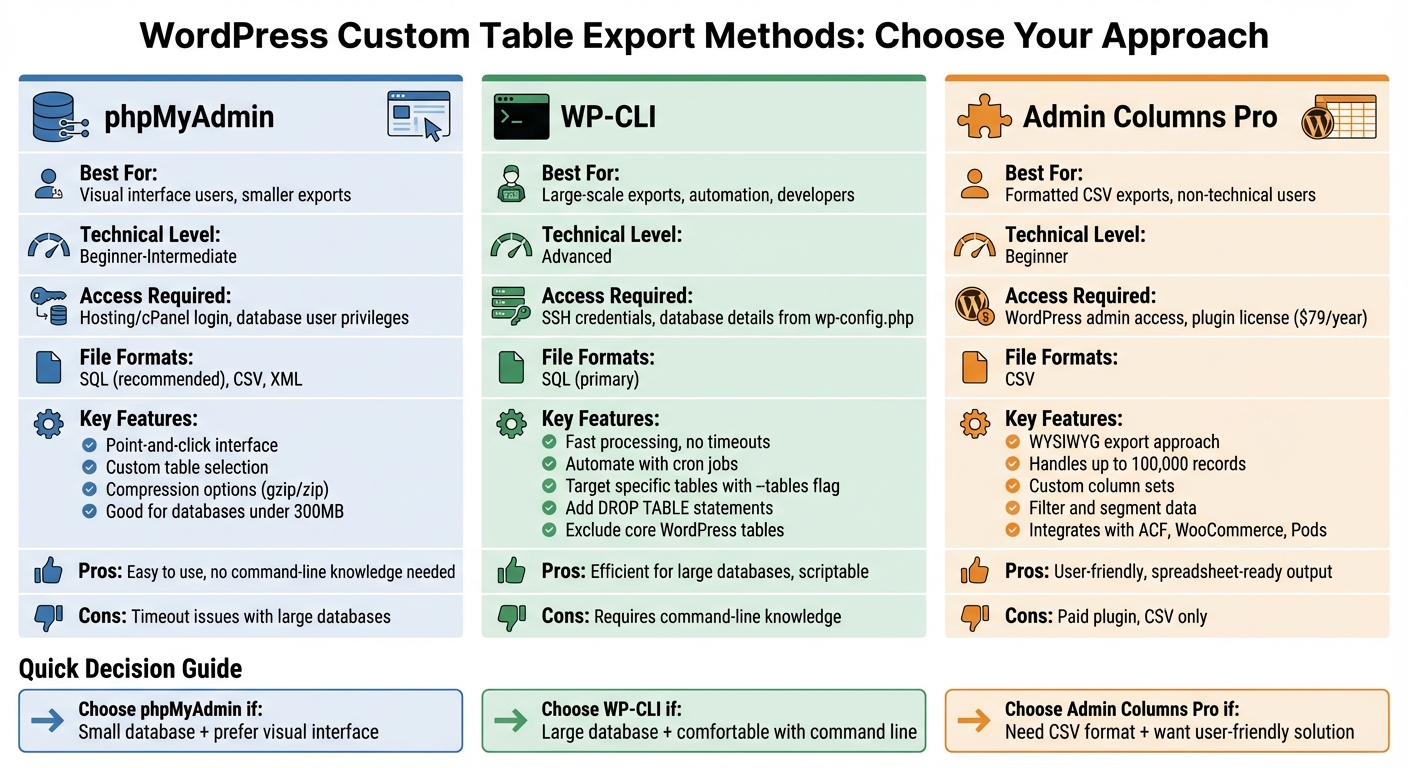
WordPress Custom Table Export Methods Comparison Guide
Once you’ve identified your custom tables and verified access, the next step is deciding how to export them. Depending on your technical skills and the size of your data, you can choose between phpMyAdmin for a graphical interface, WP-CLI for speed and automation, or Admin Columns Pro for formatted CSV exports.
Using phpMyAdmin
phpMyAdmin is a widely used tool for exporting custom tables. You can usually access it through your hosting control panel under the "Databases" section in platforms like cPanel or Plesk.
To export your tables:
- Open phpMyAdmin and select your WordPress database.
- Click Export, then choose "Custom – display all possible options" for more control.
- Highlight only the custom tables using Ctrl (Windows) or Cmd (Mac) for multiple selections.
- Select SQL format for reliable backups and migrations.
In the Object Creation Options, check "Add DROP TABLE / VIEW / PROCEDURE / FUNCTION / EVENT / TRIGGER statement" to avoid conflicts during imports.
For large tables (over 300MB), set the Maximal Length of Created Query to 1,047,551. If issues persist, reduce it to 523,776. To save bandwidth and download time, enable gzipped or zipped compression under the Output section. Finally, click Go to download your export file.
Security Tip: Database exports can include sensitive information. Always store .sql files in a secure, encrypted location.
Exporting with WP-CLI

WP-CLI offers a quicker, more efficient way to export your database, especially for large sites or when web interfaces might timeout. To use this method, ensure you have SSH access and WP-CLI installed.
Navigate to your WordPress root directory with a command like cd /var/www/html/. Then, use the basic export command:
wp db export To target specific custom tables, use the --tables parameter. For example:
wp db export --tables=$(wp db tables 'my_custom_prefix_*' --format=csv) If you want to include DROP TABLE statements for cleaner imports, add the --add-drop-table flag:
wp db export --add-drop-table --tables=wp_my_custom_table,wp_another_table To exclude core WordPress tables and focus only on custom ones, use the --exclude_tables option followed by a list of core tables, like this:
wp db export --exclude_tables=wp_options,wp_posts WP-CLI automatically names the export file in this format: {dbname}-{Y-m-d}-{random-hash}.sql. This command-line approach also allows you to automate exports using cron jobs, making it ideal for scheduled backups.
For spreadsheet-friendly formats, check out the Admin Columns Pro option below.
Using Admin Columns Pro
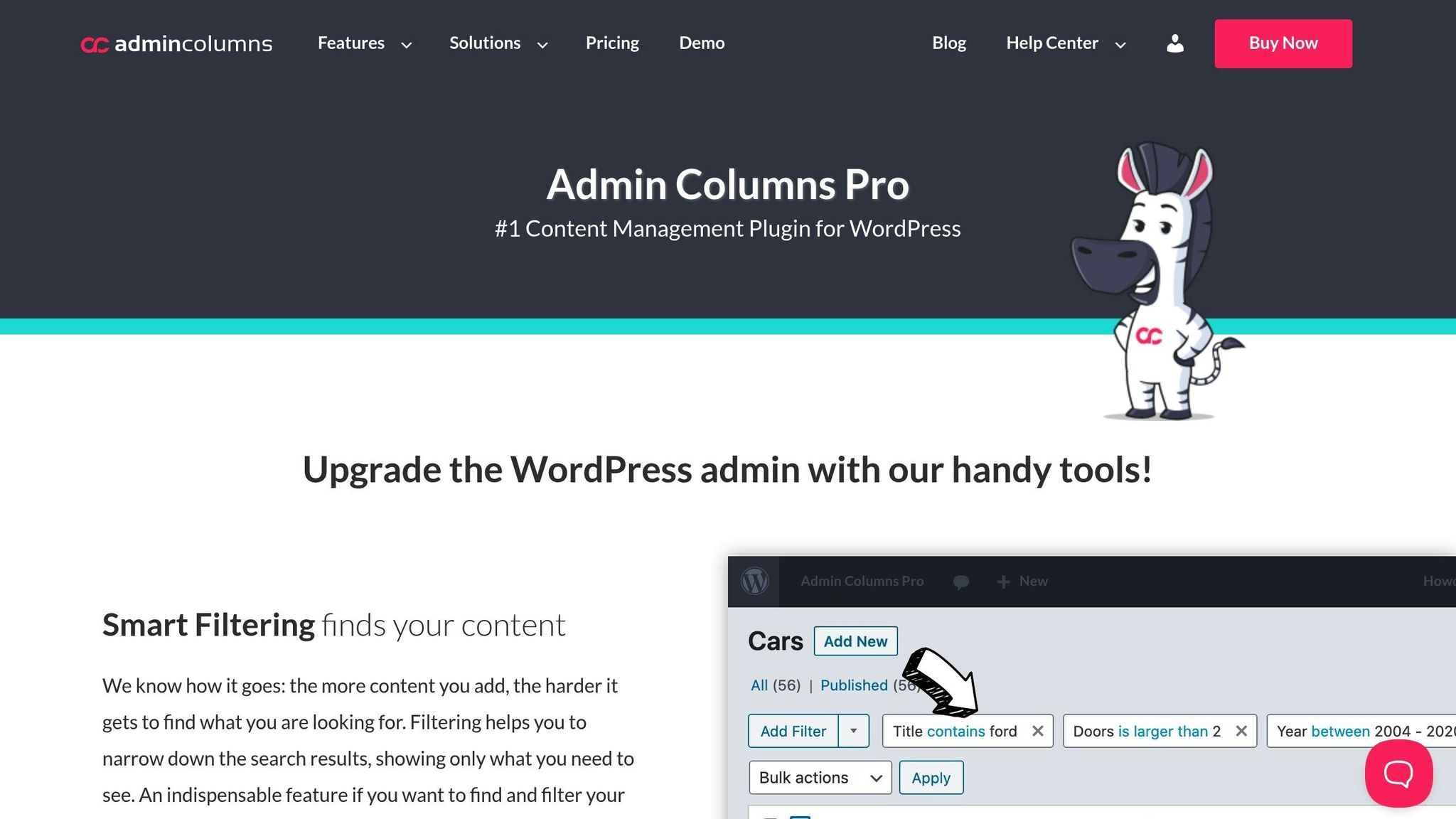
Admin Columns Pro is a plugin that transforms WordPress admin screen data into CSV files, perfect for Excel, Google Sheets, or Numbers. This method is great when you need readable, formatted data rather than raw SQL files. The plugin starts at $79 per year for a single site and is highly rated by users.
The tool uses a "what you see is what you get" approach, exporting only the columns visible on your admin screen. To prepare for export:
- Enable the export icon (a downward arrow) for specific columns in the Admin Columns settings.
- Create Column Sets – custom views tailored for exporting – so your regular admin view remains clean while your export view includes the data you need.
You can also apply filters to refine your data before exporting and save these filtered views as "segments" for future use. Admin Columns Pro handles large datasets (up to 100,000 records) and integrates seamlessly with Custom Post Types, Taxonomies, and popular plugins like Advanced Custom Fields, WooCommerce, Pods, and Gravity Forms.
The plugin simplifies complex data, such as exporting featured image URLs instead of attachment IDs, and escapes special characters (e.g., = or @) to prevent issues in spreadsheet software.
Advanced Export Techniques
When you need more precision than tools like phpMyAdmin or WP-CLI can provide, advanced export methods can step in. These approaches, such as custom PHP scripts and REST API endpoints, give you full control over exporting data from custom tables. They’re particularly useful for filtered exports, specific formatting, or integrating with external systems.
Writing Custom PHP Scripts
Custom tables don’t come with built-in import/export tools, which makes custom PHP scripts a go-to solution. These scripts allow you to export exactly the data you need without relying on third-party plugins.
To get started, create an admin page under the Tools menu using the add_management_page() function. This gives users a straightforward way to trigger exports. Then, hook your export logic into admin_init to set custom headers (like Content-Type and Content-Disposition) before any HTML is output.
Use $wpdb to query the custom table, and for large datasets, open a file handle with fopen(). Write rows using fputcsv() and close the file with fclose(). Always ensure proper user permissions and validate nonces before running the export process.
Sanitize the data carefully – use absint() for IDs and sanitize_key() for slugs. If exporting to XML, wrap text in <![CDATA[ ... ]]> to handle special characters. For filtered exports, allow users to specify parameters like date ranges or user IDs by passing an arguments array to your function.
Once the export is complete, close the file handle and call exit() to prevent any additional output. Use CSV for simple tabular data (ideal for spreadsheets) or XML for more complex data structures involving one-to-many relationships.
For a more modern and flexible solution, you can also use the WordPress REST API.
Using REST API for Data Export
The WordPress REST API provides a contemporary way to automate data exports from custom tables, complete with built-in filtering and authentication. Begin by registering a custom endpoint with register_rest_route(), hooked to rest_api_init. Use a namespace like myplugin/v1 to avoid conflicts and support versioning.
Each route should include a namespace, a path (e.g., /export-data/), and an options array specifying the HTTP method (usually GET for exports), a callback function to handle the data, and a permissions callback to verify user capabilities.
Within your callback, which receives a WP_REST_Request object, you can access URL parameters and query data using $wpdb. For selective exports, define arguments with validate_callback and sanitize_callback during route registration.
By default, the REST API returns data in JSON format. If needed, wrap your response in a WP_REST_Response object and add custom headers. If something goes wrong, return a WP_Error object with an appropriate HTTP status code and message.
For more complex use cases, you can subclass WP_REST_Controller to streamline route registration, permission checks, and data preparation. Always use rest_ensure_response() to ensure your callback returns a valid response object. For further learning, consult these REST API developer resources to master advanced endpoint configurations. For private endpoints, authenticate requests using application passwords or nonces before running permission checks.
These advanced techniques give you the flexibility to handle even the most specific export requirements, whether you’re working with large datasets, complex relationships, or external integrations.
Troubleshooting and Tips for Efficient Exports
Handling Large Tables and Timeout Issues
Exporting large custom tables can be tricky, especially when PHP execution time limits come into play. Tools like phpMyAdmin often hit these limits due to server restrictions, which might not be easy to adjust. A good way to sidestep this issue is by switching to command-line tools like WP-CLI or using direct mysqldump commands. These options bypass PHP limits entirely, making them more reliable for large exports.
If you’re stuck using phpMyAdmin for databases over 300 MB, try setting the "Maximal Length of Created Query" to 1,047,551. If that doesn’t work, lower it to 523,776 or even 104,858 [1]. For particularly large tables, export them one at a time instead of attempting to handle the entire database in one go. With WP-CLI, you can use the --tables flag to specify which tables to export or break the process into smaller chunks using the --where flag. For mysqldump, add flags like --single-transaction, --quick, and --lock-tables=false to speed things up and reduce strain on the server.
If you’re exporting via SSH, use a screen or tmux session to keep the process running even if your connection drops. For compression, stick with gzip – it’s faster than bzip2 and keeps the export process moving efficiently.
Next, let’s tackle common access issues that might block your export efforts.
Fixing Access and Permissions Errors
Access errors during exports often stem from mismatched database credentials or file system permission problems. The export tools rely on the database credentials stored in your wp-config.php file. If these credentials are outdated – perhaps after a hosting migration – you’ll run into problems. To fix this, update the wp-config.php file or use WP-CLI’s --dbuser and --dbpass flags to manually input the correct credentials.
File system permissions are another common roadblock. If you’re using tools like MySQL Workbench, make sure the target directory has proper write permissions. On managed hosting platforms like WordPress.com, access to tools like phpMyAdmin or WP-CLI often requires a Business or Commerce plan. If you’re missing features, double-check your hosting plan.
For remote operations, WP-CLI’s --ssh parameter can help you run exports directly on the server, bypassing local permission issues. Just remember to test any database commands on a staging site first to avoid potential data loss or disruptions.
| Error Source | Common Cause | Recommended Fix |
|---|---|---|
| Database Credentials | Incorrect DB_USER or DB_PASSWORD in wp-config.php |
Update wp-config.php or use --dbuser/--dbpass flags in WP-CLI |
| File System | No write permissions in the target directory | Adjust directory permissions or use an alternative path like /tmp |
| Hosting Environment | Plan-based restrictions on tools | Upgrade to a Business/Commerce plan to unlock required features |
| Remote Connection | Firewall or MySQL blocking external IPs | Use an SSH tunnel or whitelist your IP in the hosting control panel |
Once you’ve resolved access issues, the next step is selecting the right export format for your needs.
Choosing the Right Export Format
When it comes to full backups or site migrations, SQL (.sql) is your best bet. It recreates the database structure and data using SQL commands, ensuring accuracy. To avoid "table already exists" errors during imports, include DROP TABLE IF EXISTS statements in your export. After exporting, check that the last line of the file includes a comment like -- Dump completed on [Date] to confirm the process finished successfully.
CSV files are perfect for working with data in spreadsheet software or transferring it to tools like CRMs. Always export in UTF-8 encoding to prevent issues with special characters. The flexible format of CSV files allows you to map columns during imports to match WordPress fields without needing a rigid structure.
For WordPress-specific tasks, XML (WXR) is the go-to format. It’s ideal for transferring posts, pages, comments, and terms between WordPress installations. If your XML file is large, compress it using gzip or bzip2 to reduce its size and avoid hitting server upload limits.
Conclusion
Exporting custom tables from WordPress can be a smooth process when you have the right tools at your disposal. If you’re looking for a quick and direct solution, phpMyAdmin is a reliable choice for one-off exports that require direct database access. For developers or those managing large datasets, WP-CLI stands out as an efficient option, especially for automating regular exports. Meanwhile, plugins like Admin Columns Pro offer a user-friendly alternative for those who prefer a visual interface and want to avoid diving into technical details.
Experts emphasize the importance of mastering backup and export procedures for maintaining site security. Always make sure to create a full backup before starting any export task. For larger databases, tools like WP-CLI or SSH are better suited, as they help avoid the timeout errors that often occur with browser-based methods. The export format you choose should align with your needs – SQL is ideal for migrations, CSV works best for spreadsheet analysis, and XML is tailored for WordPress-specific content transfers.
Whether you opt for phpMyAdmin, WP-CLI, or a plugin, these methods are essential for effective WordPress management. Platforms like WP Winners offer valuable resources to help you refine your skills, whether you’re a beginner getting started or an experienced user fine-tuning advanced workflows. By exploring these tools and techniques, you’ll be better equipped to keep your WordPress site secure and running efficiently.
FAQs
What are the best ways to export large custom tables in WordPress?
Exporting large custom tables from WordPress can be managed effectively using several reliable methods:
If you’re comfortable with command-line tools, WP-CLI is a fantastic option. Its wp db export command lets you export specific tables directly from the server, which helps avoid common problems like timeouts. You can also tailor the export by using parameters like --tables= to focus only on the data you need.
For those who prefer a visual approach, phpMyAdmin is a solid choice. This tool allows you to select specific tables and export them as .sql files or compressed formats, making it accessible even for users without technical expertise.
If ease of use is your priority, plugins like WP Ultimate Exporter or WP All Import are excellent alternatives. These plugins offer straightforward interfaces for exporting custom tables and are designed to handle large datasets smoothly.
For step-by-step instructions and additional tips, WP Winners provides tutorials to help you streamline your export process and manage extensive data effectively.
How do I make sure all my WordPress data is included in an export?
To make sure your WordPress export captures everything you need, including custom tables, follow these steps:
- Export your core content. Head to Tools → Export in your WordPress dashboard. Select "All content" or use filters to narrow down what you want to export. This will generate a file with posts, pages, custom post types, taxonomies, and user data.
- Export custom database tables. Use WP-CLI’s
wp db exportcommand or a database management tool to create a.sqlfile. This step ensures any custom tables in your database are included in your backup. - Double-check your export. Open the exported files to confirm they contain the necessary data. If you want extra peace of mind, try importing the files into a staging site to confirm everything works as expected.
If you’re looking for more in-depth instructions or helpful tools, check out WP Winners. They offer resources tailored to WordPress users of all experience levels.
What steps should I take to safely export custom tables in WordPress?
Before exporting custom tables in WordPress, it’s important to take a few steps to protect your data and ensure a smooth process. Start by creating a full backup of your site. This backup should include all files and your database. Store copies in multiple locations – such as a local drive and cloud storage – for added security. Once the backup is complete, double-check it to make sure it contains everything you need and isn’t corrupted.
Next, run a security scan to ensure your site is free from malware or other threats. This step helps you avoid exporting compromised data. Gather any necessary credentials, like database login details or hosting access, and note down your export settings. Be specific about the format and which tables you want to include. If you’re unsure, testing the export on a staging site can help confirm everything works as intended.
For added convenience and safety, use trusted tools or plugins. Platforms like WP Winners offer curated plugins and guides that simplify the process, making it easier to export custom tables without a hitch.